Your day.
Before you
unlock.
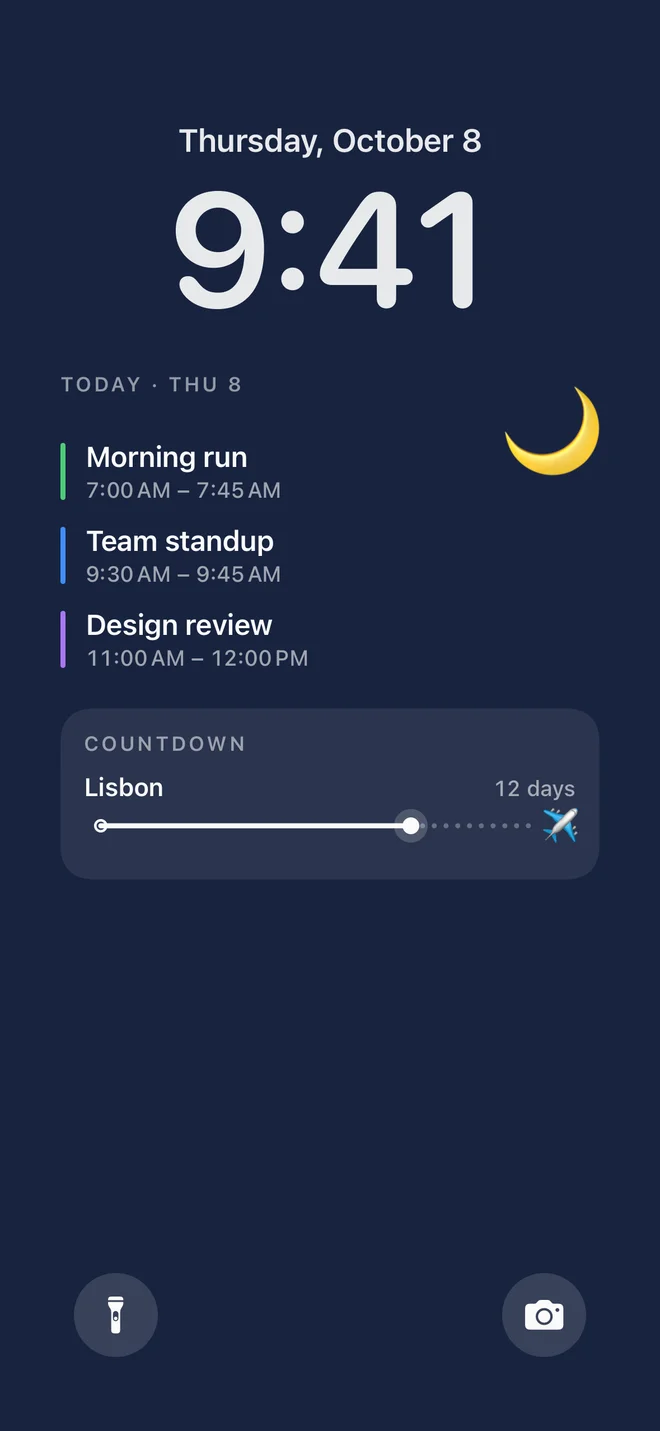
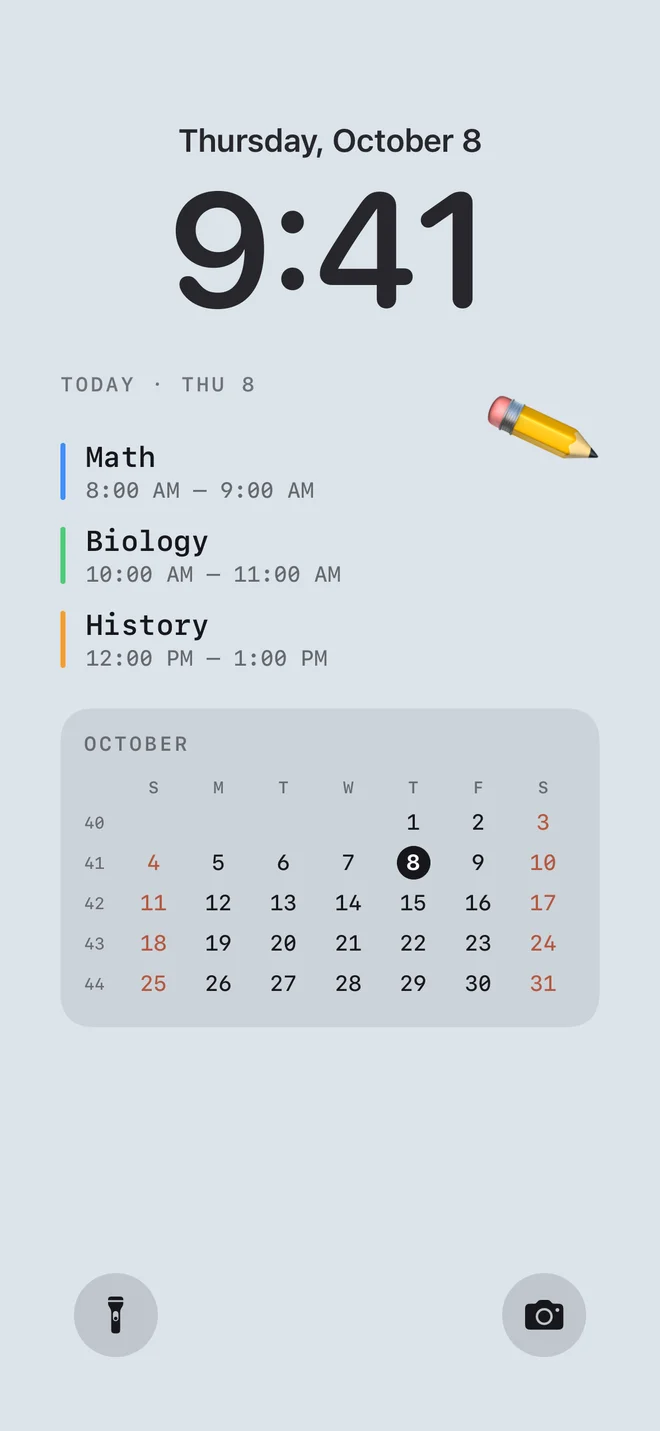
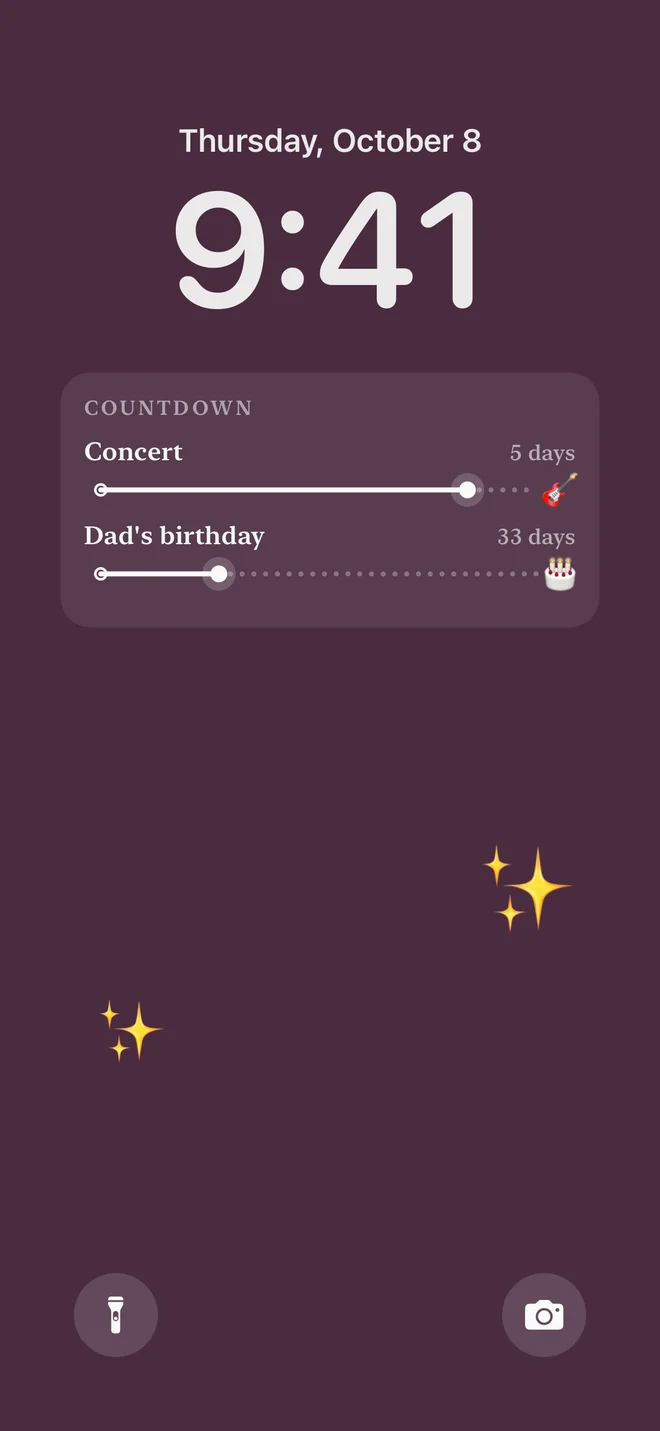
Your plans, a note to yourself, something to look forward to. Calpaper puts it all on your iPhone Lock Screen, fresh every morning.

For iPhone · iOS 18 or later · No account needed
Open setup guide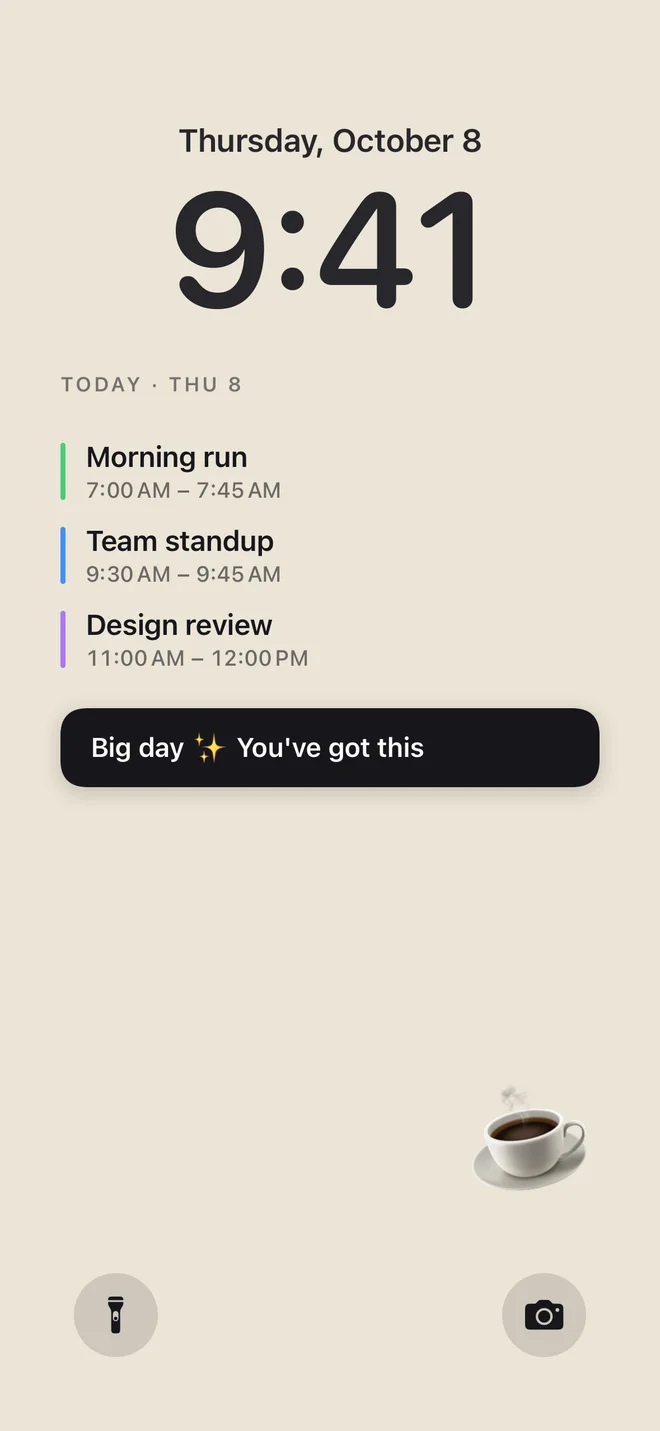
The things that matter.
Right where you look.
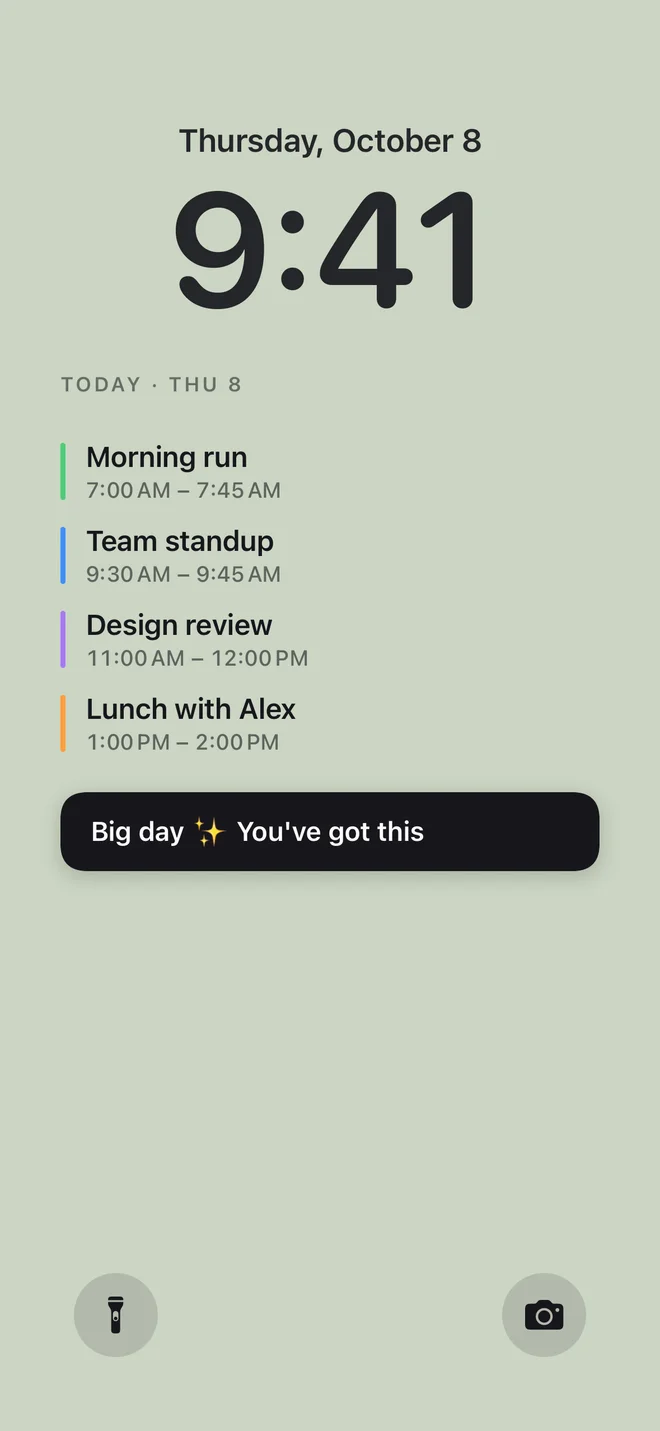
Lift your phone. There’s your day.
Useful can be
beautifully yours.
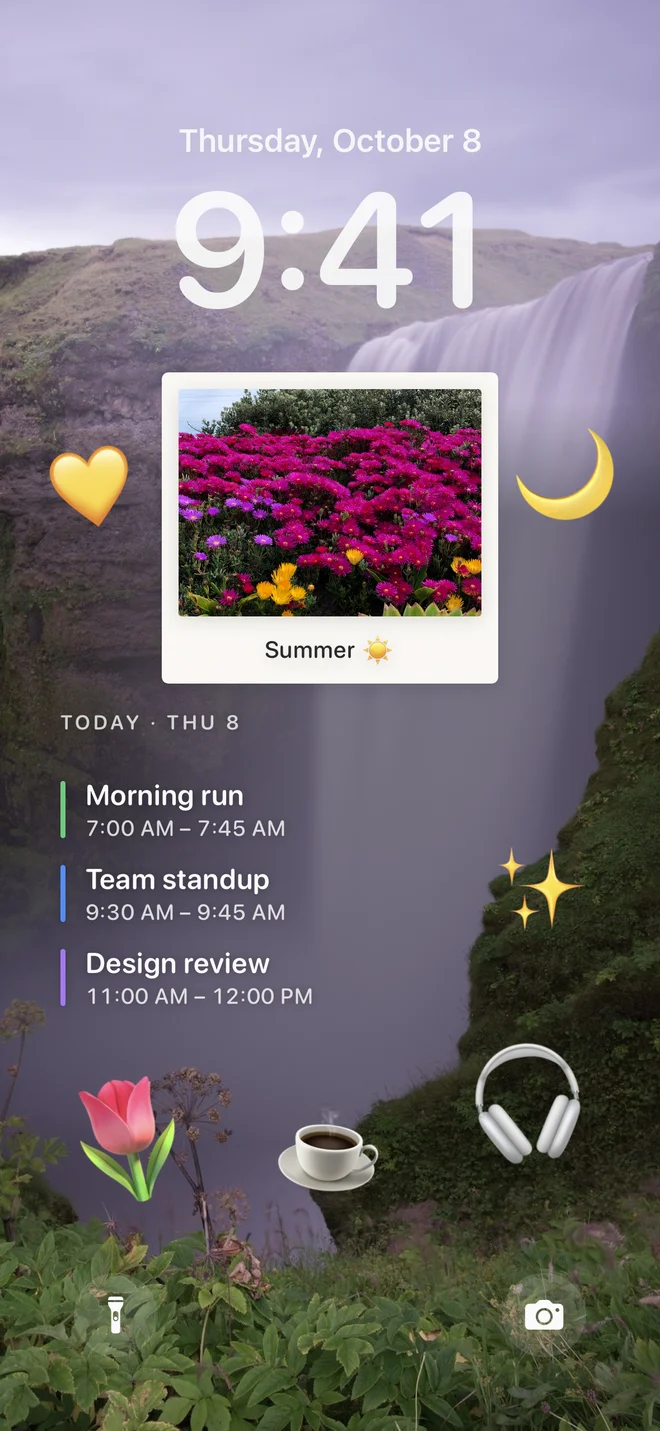
A calm color. Your favorite photo. Type that feels like you. Arrange the blocks, add a little personality, and leave room for what you love.
Wake up to
a fresh page.
Connect Calpaper to Apple Shortcuts once. Your iPhone redraws your wallpaper at the time you choose, every day.
Plans changed after breakfast? Tap Update in Calpaper to bring your Lock Screen up to date.
Let’s set up your mornings
Set it once.
Then let it do its thing.
Choose your look in Calpaper first. Then follow the same setup guide you’ll find in the app. You only need to do this once.
For iOS 18–26
-
01Give Calpaper its own wallpaper
Open Settings → Wallpaper → Add New Wallpaper. Pick a plain wallpaper, tap Add, then Set as Wallpaper Pair.
Calpaper replaces this wallpaper’s photo every morning. Creating a separate one keeps your other wallpapers safe.
-
02Open Shortcuts
Open Apple’s Shortcuts app. If you’re following the guide inside Calpaper, tap Open Shortcuts.
Switch back to this guide whenever you need the next step.
-
03Start a new shortcut
Tap Shortcuts at the bottom, then + in the top-right corner.
You’ll build the shortcut first, then tell your iPhone when to run it.
-
04Add Calpaper
Search for Calpaper and tap Get Today’s Calpaper.
Can’t see it? Open Calpaper for a moment, return to Shortcuts, then search again.
-
05Add Set Wallpaper
Search for Set Wallpaper and tap Set Wallpaper Photo. This goes after Get Today’s Calpaper.
-
06Choose the right wallpaper
Tap Current and select the wallpaper you created for Calpaper. Tap the circled › at the end of the Set Wallpaper Photo action, then turn off Crop to Subject and Show Preview.
Don’t leave it set to Current: that would replace whichever wallpaper happens to be showing. Turning off those two switches prevents unwanted zooming and a daily confirmation.
-
07Name it, try it, save
Tap the name at the top, choose Rename, and type Calpaper. Tap the ▶ play button to try it. Your wallpaper should change right away. Tap Done.
Use the name Calpaper so the app’s Update button can find and run it.
-
08Go to Automation
Tap Automation at the bottom of Shortcuts. This is where you tell your iPhone to do something on its own.
-
09Start a new automation
Tap + in the top-right corner. If this is your first automation, tap New Automation in the middle instead.
-
10Choose Time of Day
Tap Time of Day, near the top of the list.
-
11Pick when it runs
Choose a time—6:00 AM works well. Keep Daily, select Run Immediately, and tap Next.
Run Immediately lets it update without asking you to confirm every morning.
-
12Run Calpaper
Under My Shortcuts, tap Calpaper. You’re all set.
Not in the list? Tap New Blank Automation, search for Run Shortcut, add it, and choose Calpaper.
For iOS 27
-
01Give Calpaper its own wallpaper
Open Settings → Wallpaper → Add New Wallpaper. Pick a plain wallpaper, tap Add, then Set as Wallpaper Pair.
Calpaper replaces this wallpaper’s photo each morning. A separate wallpaper keeps your other ones safe.
-
02Open Shortcuts
Open Apple’s Shortcuts app, or tap Open Shortcuts in Calpaper’s setup guide. Come back to this guide for each step.
-
03Start a new shortcut
Tap + at the bottom of the screen. If you don’t see it, tap ‹ in the top-left until you reach All Shortcuts.
-
04Build it by hand
Tap Edit in the top-right. You don’t need to type anything into the box.
-
05Make it run every day
Tap Automation, then Time of Day.
-
06Pick the time
Tap Time and choose 6:00 AM, or another time that suits you. Check that Repeat says Every Day and Automation is on.
With Automation on, the shortcut runs by itself.
-
07Add Calpaper
Tap Search at the bottom, type Calpaper, and tap Get Today’s Calpaper.
Not showing up? Close Shortcuts completely in the app switcher, open it again, and search once more.
-
08Add Set Wallpaper
Search for Set Wallpaper and tap Set Wallpaper Photo.
-
09Connect the two actions
Tap Wallpaper and choose the one you created for Calpaper. Check that the action says to Get Today’s Calpaper. If it doesn’t, tap that spot and select it.
-
10Make it quiet
Tap the circled › after Lock Screen and Home Screen. Turn off Crop to Subject and Show Preview, then tap Done.
This prevents unwanted zooming and stops iOS asking you to confirm the wallpaper each morning.
-
11Name it, try it, save
Tap the name at the top, choose Rename, and type Calpaper. Tap ▶ to try it, then ‹ in the top-left to save.
Naming it Calpaper lets the app’s Update button run it whenever your plans change.
Your wallpaper will refresh at your chosen time. Want to change its look? Open Calpaper, make it yours, and tap Update.
A few little
details.
Need a hand? Visit support
Does it update throughout the day?
Your wallpaper is a snapshot, refreshed by Shortcuts at the time you choose. If your plans change during the day, tap Update in Calpaper to refresh it now.
Why do I need Apple Shortcuts?
iOS doesn’t let apps change your wallpaper on their own. Shortcuts can. Calpaper creates the image, and your automation sets it as your wallpaper. The guide above walks you through it.
Does it sync with Apple Reminders?
The reminders on your wallpaper are short lines you type in Calpaper. They don’t sync with Apple Reminders. Your calendar events come from the calendars on your iPhone.
Is there a subscription?
No. Calpaper includes all its features: calendar events, reminders, notes, countdowns, photos, emoji, fonts and layout options. There’s no subscription, no advertising and no account to create. Check the App Store for the current download price in your region.
Where do my calendar and photos go?
They stay on your iPhone. Calpaper reads your calendar and draws your wallpaper on your device, with no account. Anonymous usage stats are optional and never include your calendar, notes or photos. Read the privacy policy.
Can I make the text easier to read?
Yes. Turn on Larger text in Calpaper’s Look step. The app also supports VoiceOver, Dynamic Type and Reduce Motion.

Make your next glance
a good one.